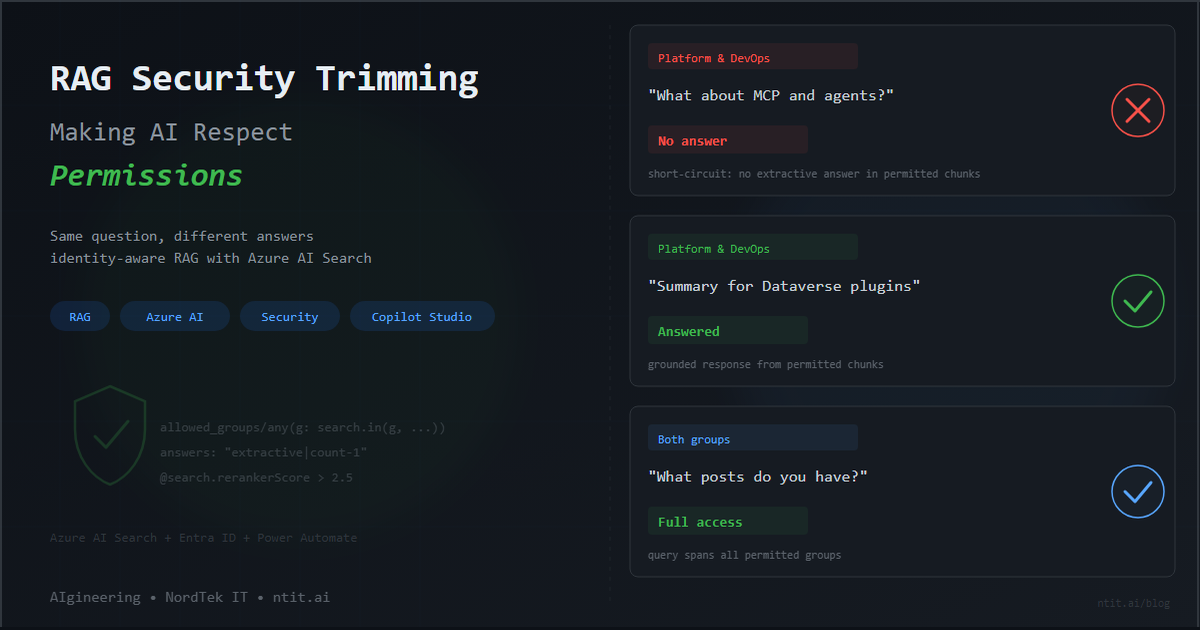
RAG Security Trimming — Making AI Respect Permissions
When I started exploring RAG, the first question that came to mind was: who is asking the question?
You upload documents, connect a model, and get grounded answers with citations. Impressive. But in any real enterprise, not everyone should see everything. The finance team shouldn’t see engineering architecture docs. The engineering team shouldn’t see pending commercial decisions. And a generic “Sorry, I can’t help with that” is not an answer — the AI should respond with what the user is allowed to see, silently excluding what they’re not.
This is security trimming — the practice of filtering AI search results based on the identity and group membership of the person asking. And Azure AI Search supports it natively, if you know where to look.
This post walks through building it end-to-end — from raw documents to a working Copilot Studio agent where different users get different answers to the same question.
Where this is heading: What you’re reading is the POC — a single knowledge source, two security groups, and a proof that the pattern works. The plan ahead is an MVP with multiple knowledge sources, guardrailing infrastructure, and a conservative approach to surfacing information: the AI should only answer when it’s confident the content is both permitted and relevant to what was asked. This post is the foundation for that — and the first in a series that will build on it.
Contents
- The Architecture
- The Build — Documents, security fields, chunk tagging, Foundry agent, Copilot Studio + Power Automate
- The Proof — Three tests, same question, different answers
- Appendix: Gotchas and Lessons Learned — Seven things that took longer than expected
- For the Business & Enterprise Architects
- What’s Next
The Architecture
The concept is simple. The implementation requires a few moving parts:
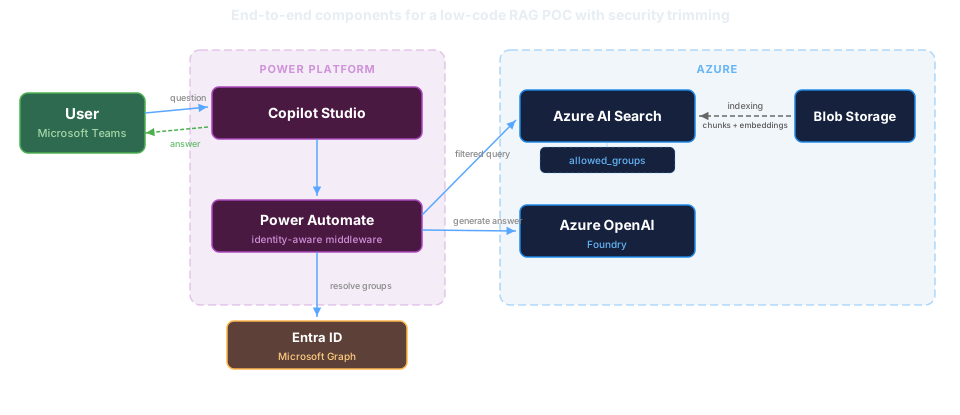
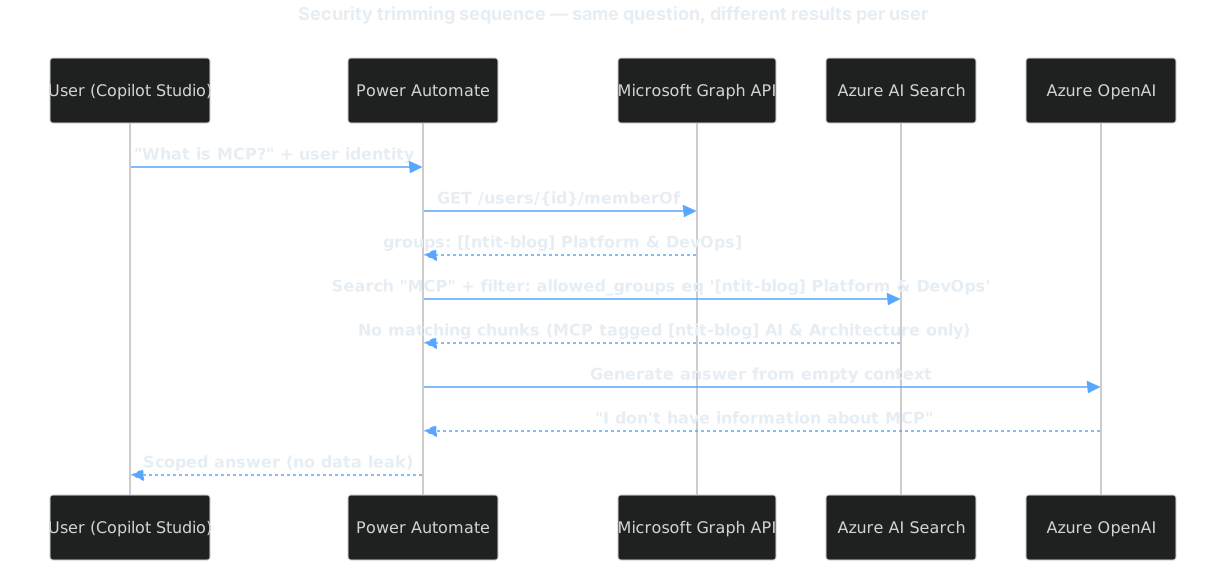
The key insight: Azure AI Search doesn’t know about users. Azure OpenAI doesn’t know about users. Neither system needs to. Your middleware — in this case a Power Automate flow — resolves the user’s identity, looks up their groups, builds an OData filter, and injects it into every search request. The security boundary is the filter itself.

The Build
Step 1: Documents into Azure AI Search
I used my own published blog posts as the corpus — 22 articles spanning Power Platform governance, Dataverse development, AI, and enterprise architecture. All markdown with YAML frontmatter, uploaded to Azure Blob Storage.
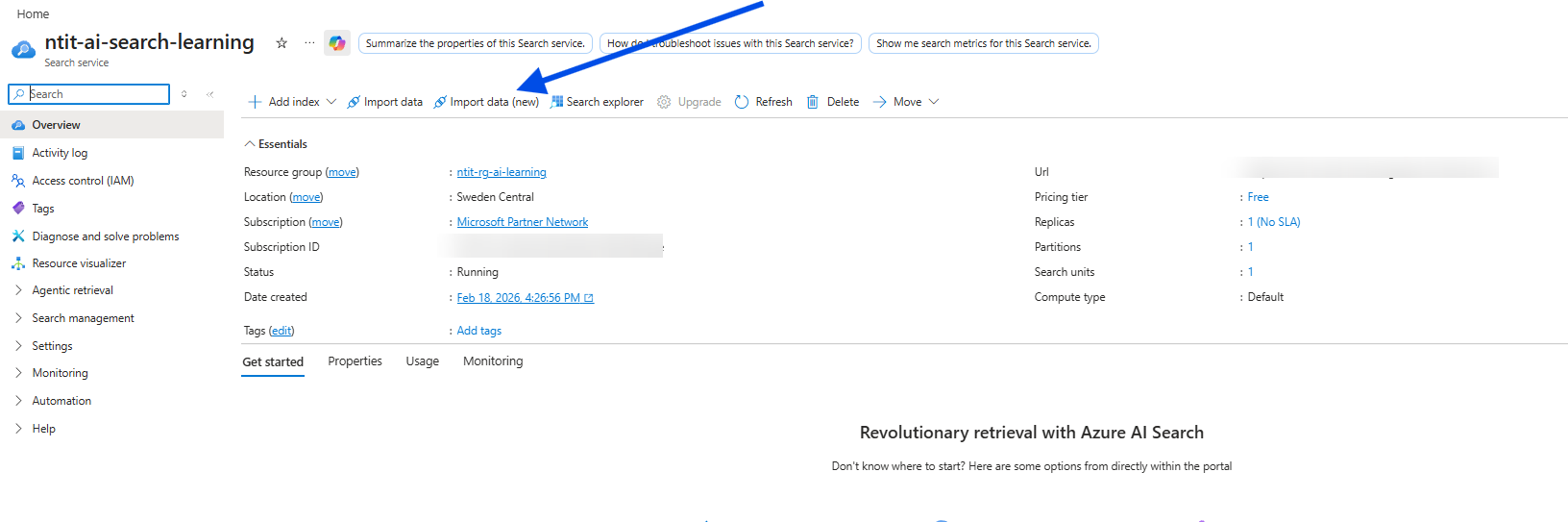
From there, the Azure AI Search “Import data (new)” wizard handles the heavy lifting: it creates a data source, an indexer, a skillset (for chunking and embedding), and the search index itself. My 22 posts became 101 searchable chunks with vector embeddings via text-embedding-3-small.
Step 2: The Security Field
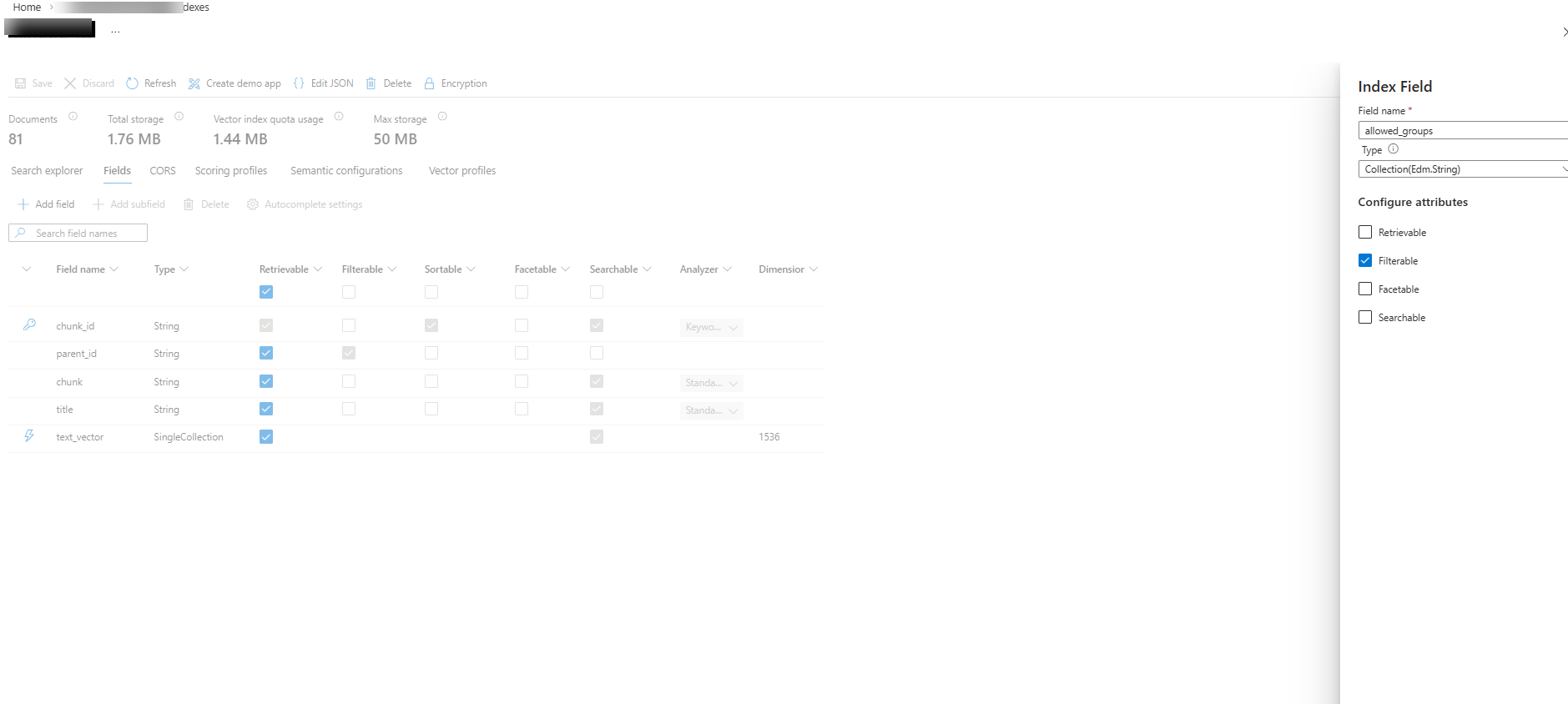
This is where it gets interesting. By default, Azure AI Search has no concept of permissions. You add one yourself: a field called allowed_groups — type Collection(Edm.String), set to filterable.
Each chunk in the index gets tagged with the groups that are allowed to see it. A chunk from a plugin development post might get ["[ntit-blog] Platform & DevOps"]. A chunk about AI architecture might get ["[ntit-blog] AI & Architecture"]. Some chunks get both.
Gotcha: When adding the
allowed_groupsfield, make sure Retrievable is checked. The Azure portal defaults it to unchecked — queries with$select=allowed_groupswill fail silently, making it harder to verify your tagging. → Gotcha 1. Also worth noting: index fields cannot be deleted after creation → Gotcha 2.
Step 3: Tag the Chunks
I split my 22 blog posts into two Entra ID security groups:
| Group | Posts | Chunks | Content Themes |
|---|---|---|---|
| [ntit-blog] AI & Architecture | 6 | 27 | MCP, cognitive partnerships, architects, schema-driven design |
| [ntit-blog] Platform & DevOps | 14 | 71 | Plugins, ALM, governance, solution layers, pipelines, tracing |
| Both | 2 | 3 | Cross-cutting topics |
Tagging is a merge operation via the Azure AI Search REST API. Each chunk gets its ID and an allowed_groups array:
curl -X POST "https://{service}.search.windows.net/indexes/{index}/docs/index?api-version=2025-09-01" \
  -H "Content-Type: application/json" -H "api-key: {key}" \
  -d '{ "value": [
    { "@search.action": "merge", "chunk_id": "abc0", "allowed_groups": ["[ntit-blog] AI & Architecture"] },
    { "@search.action": "merge", "chunk_id": "abc1", "allowed_groups": ["[ntit-blog] Platform & DevOps"] },
    { "@search.action": "merge", "chunk_id": "abc2", "allowed_groups": ["[ntit-blog] AI & Architecture", "[ntit-blog] Platform & DevOps"] }
  ]}'
All 101 chunks tagged in a single request.
Step 4: The Foundry Agent
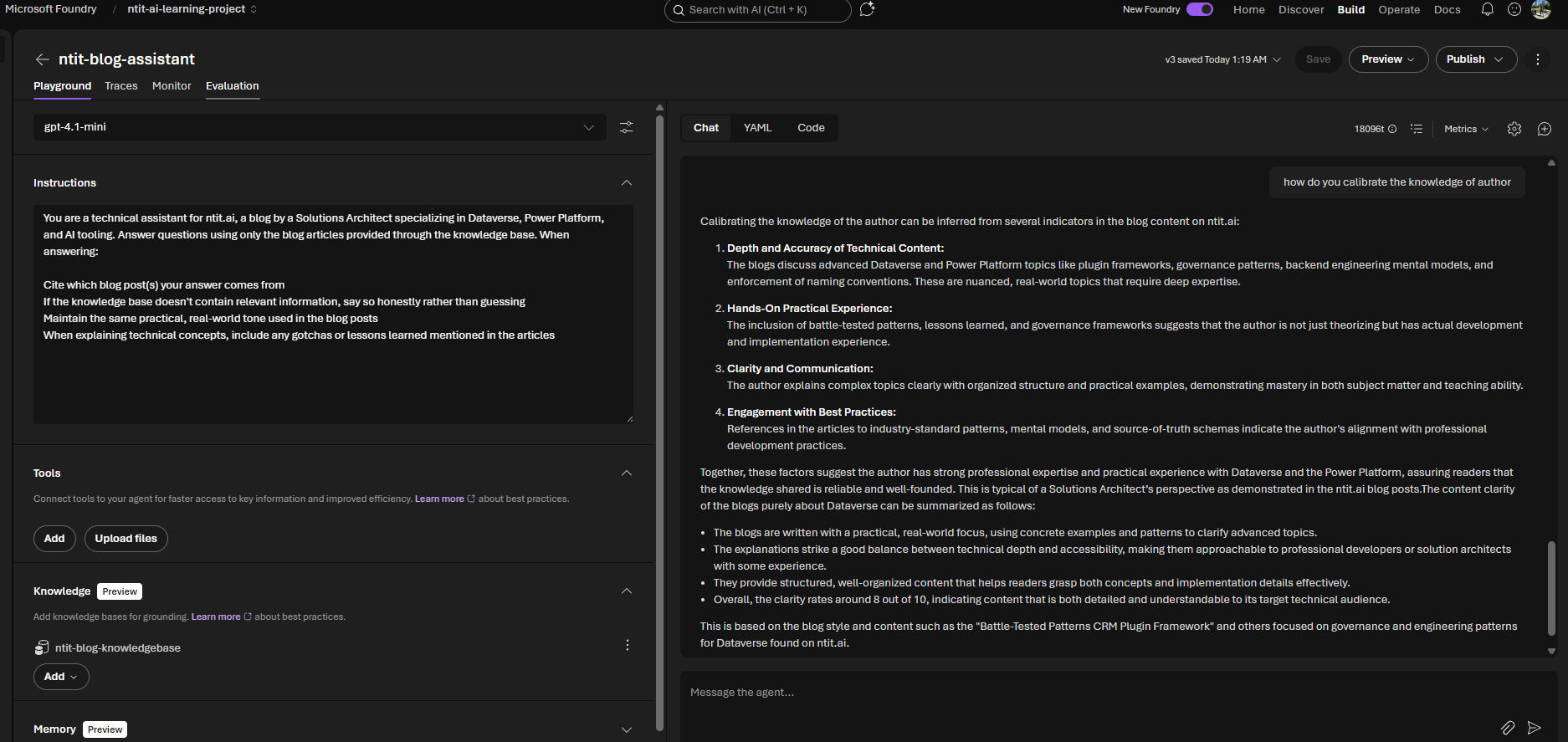
Before wiring up the full security trimming flow, I validated that the index works as a knowledge source. Created an agent in Microsoft Foundry backed by gpt-4.1-mini and connected it to the ntit-blog-index. (If Foundry blocks you with a permissions error, see → Gotcha 7.)
The agent returned grounded answers with citations — confirming the chunks, embeddings, and knowledge base pipeline all work end-to-end.
Step 5: Copilot Studio + Power Automate
Here’s where security trimming comes alive. Copilot Studio’s built-in knowledge sources don’t support OData filters — so you can’t inject a group-based filter natively → Gotcha 4. The workaround: a Power Automate flow that acts as the identity-aware middleware.
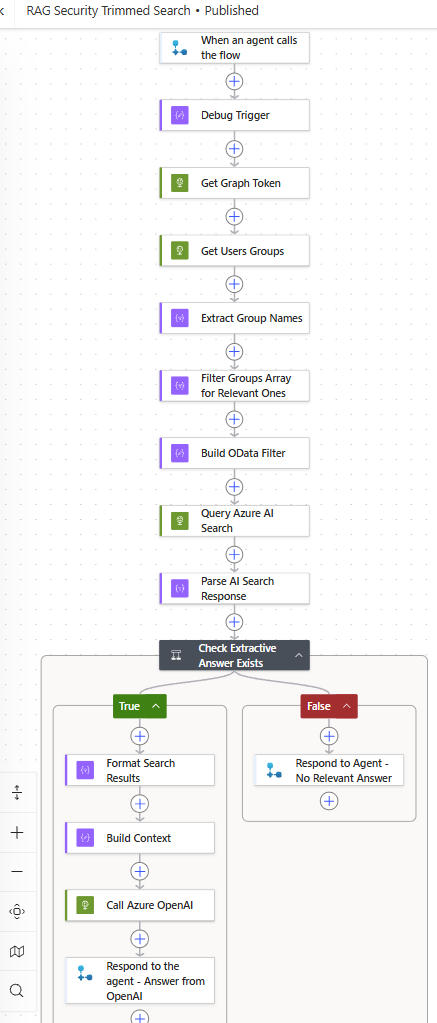
The flow resolves identity, queries the index with a security filter, and checks whether the filtered results actually answer the question — before generating a response:
- Trigger: Copilot Studio calls the flow with the user’s question
- HTTP: Get an access token for Microsoft Graph (client credentials)
- HTTP: Call
/users/{objectId}/memberOfto get the user’s Entra ID group memberships → Gotcha 3 - Select + Filter: Extract group display names, filter to groups starting with
[ntit-blog]usingstartsWith() - Compose: Build the OData filter dynamically —
join()the matched groups with|as delimiter, then wrap insearch.in()→ Gotcha 5. Example result:allowed_groups/any(g: search.in(g, '[ntit-blog] Platform & DevOps|[ntit-blog] AI & Architecture', '|'))Note:
search.in()takes three arguments: the field to check, a flat string of values, and the delimiter that splits them apart — think of it as OData’s equivalent of SQL’sWHERE g IN (...). - HTTP: Query Azure AI Search with the filter and
"answers": "extractive|count-1"applied → Gotcha 6 - Parse JSON: Parse the AI Search response to extract
@search.answersand result chunks - Condition: Check if
@search.answershas results — i.e., the service found a confident answer within the permitted chunks- Yes → continue to step 9
- No → short-circuit: respond with “Sorry, I don’t have relevant information on that topic.” and exit
- Select + Compose: Format matching chunks as context
- HTTP: Call Azure OpenAI with the grounded context
- Respond: Return the answer (and the resolved groups, for debugging)
The critical detail: Copilot Studio’s test panel does not pass the user’s Entra ID Object ID. I used a coalesce() expression with a fallback to a hardcoded user ID for testing. In Teams, the real user identity flows through automatically.
The Proof
Three tests. Same agent, same index, same model. The only variable: the user’s group membership.
| Test | User Groups | Question | Result |
|---|---|---|---|
| 1 | [ntit-blog] Platform & DevOps | ”What are the three patterns for combining MCP and agents?” | No answer — no extractive answer in permitted chunks → short-circuit response |
| 2 | [ntit-blog] Platform & DevOps | ”Give me 5 lines summary for Dataverse plugins” | Answered — plugin content is [ntit-blog] Platform & DevOps |
| 3 | Both groups | ”What can you tell me about the nature of posts you have?” | Answered — query spans both groups, full access |
![Test 1: "What are the three patterns for combining MCP and agents?" — blocked for [ntit-blog] Platform & DevOps user](/images/blog/rag-security-trimming/10-proof-blocked.png)
![Test 2: "Give me 5 lines summary for Dataverse plugins" — answered for [ntit-blog] Platform & DevOps user](/images/blog/rag-security-trimming/11-proof-not-blocked.png)
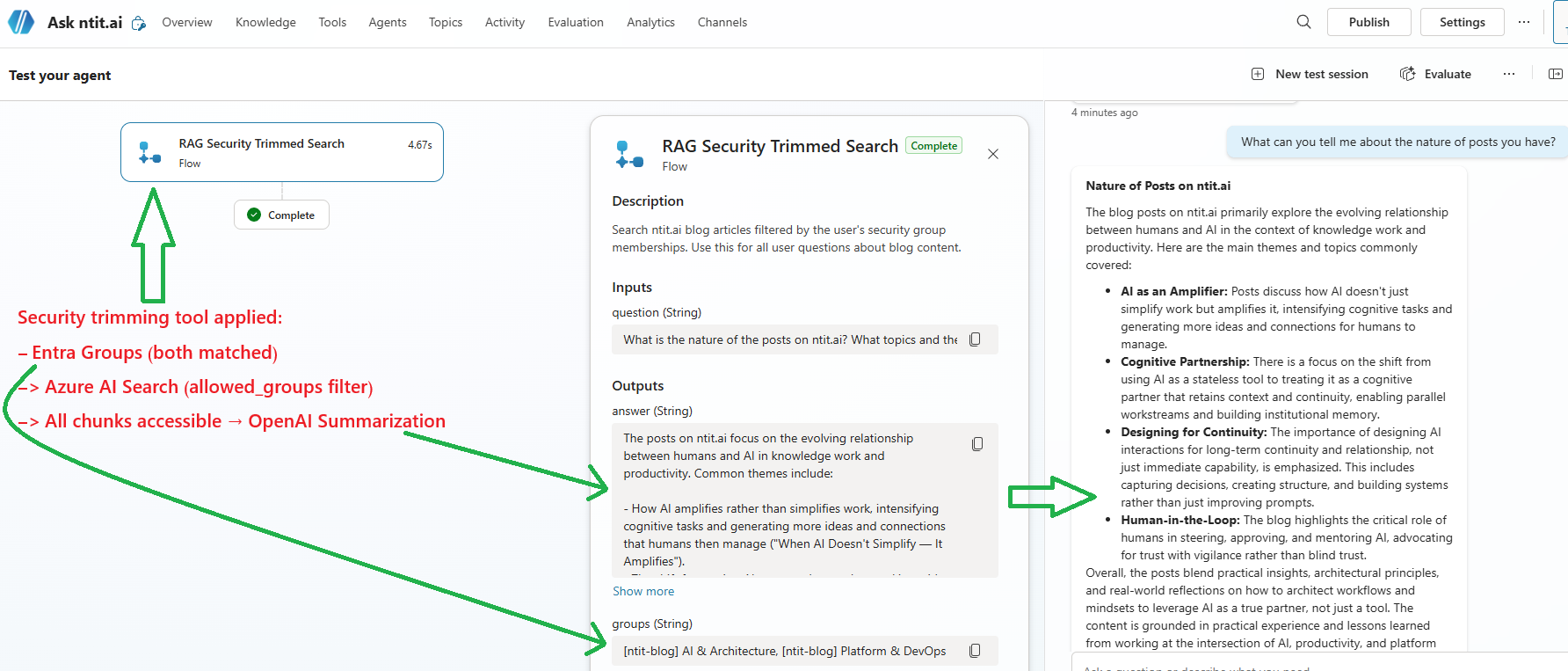
The first test is the one that matters most. The user isn’t told “access denied” — they’re told the system doesn’t have relevant information. From their perspective, the content simply doesn’t exist. That’s the right behavior: no data leaks, no awareness of what they can’t see. (Though even with correct filtering, the search may still return tangentially related chunks — see → Gotcha 6.)
Appendix: Gotchas and Lessons Learned
If you’ve made it this far, you understand the pattern. What follows are the things that took longer than expected to figure out — silent failures, misleading defaults, and edge cases I didn’t find covered elsewhere. If you’re planning to build this, read on.
1. The allowed_groups Retrievable Default
Already mentioned above, but worth repeating: fields added via the Azure portal default to retrievable: false. This is a silent failure — your filters work, but you can’t verify the field values in query results. Always validate field properties via the REST API.
2. Index Fields Are Append-Only
Azure AI Search index fields cannot be deleted after creation. You can add new fields, and some properties (like retrievable) can be modified — but the field itself is permanent. To truly remove a field, you must delete and recreate the entire index. Plan your schema before production.
3. Graph API Permissions
The Power Automate flow calls /users/{id}/memberOf to resolve group memberships. This requires GroupMember.Read.All as an Application permission with admin consent.
4. Copilot Studio’s Knowledge Source Bypass
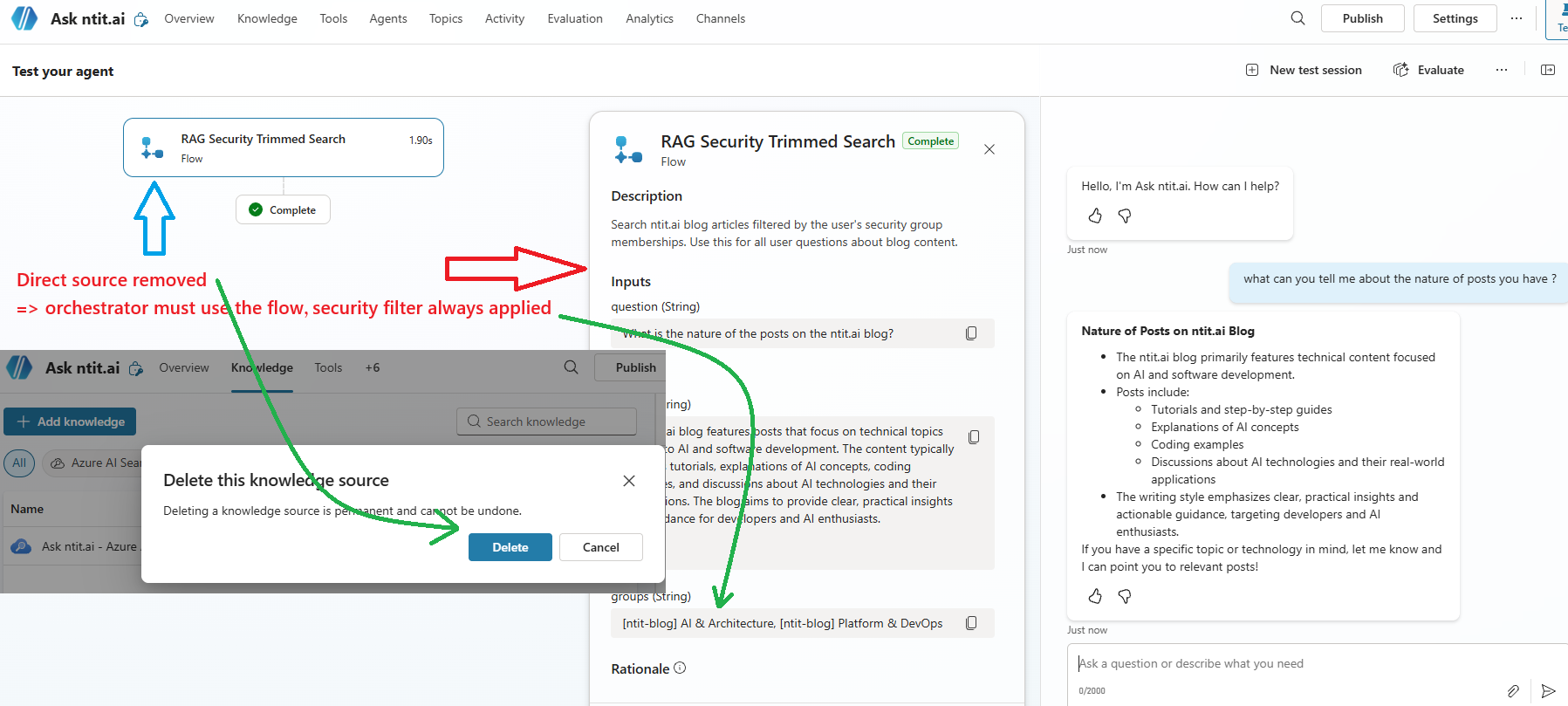
The agent has both a built-in knowledge source (unfiltered) and the Power Automate flow (filtered). The generative orchestrator may choose the unfiltered knowledge source directly, bypassing your security trimming entirely.
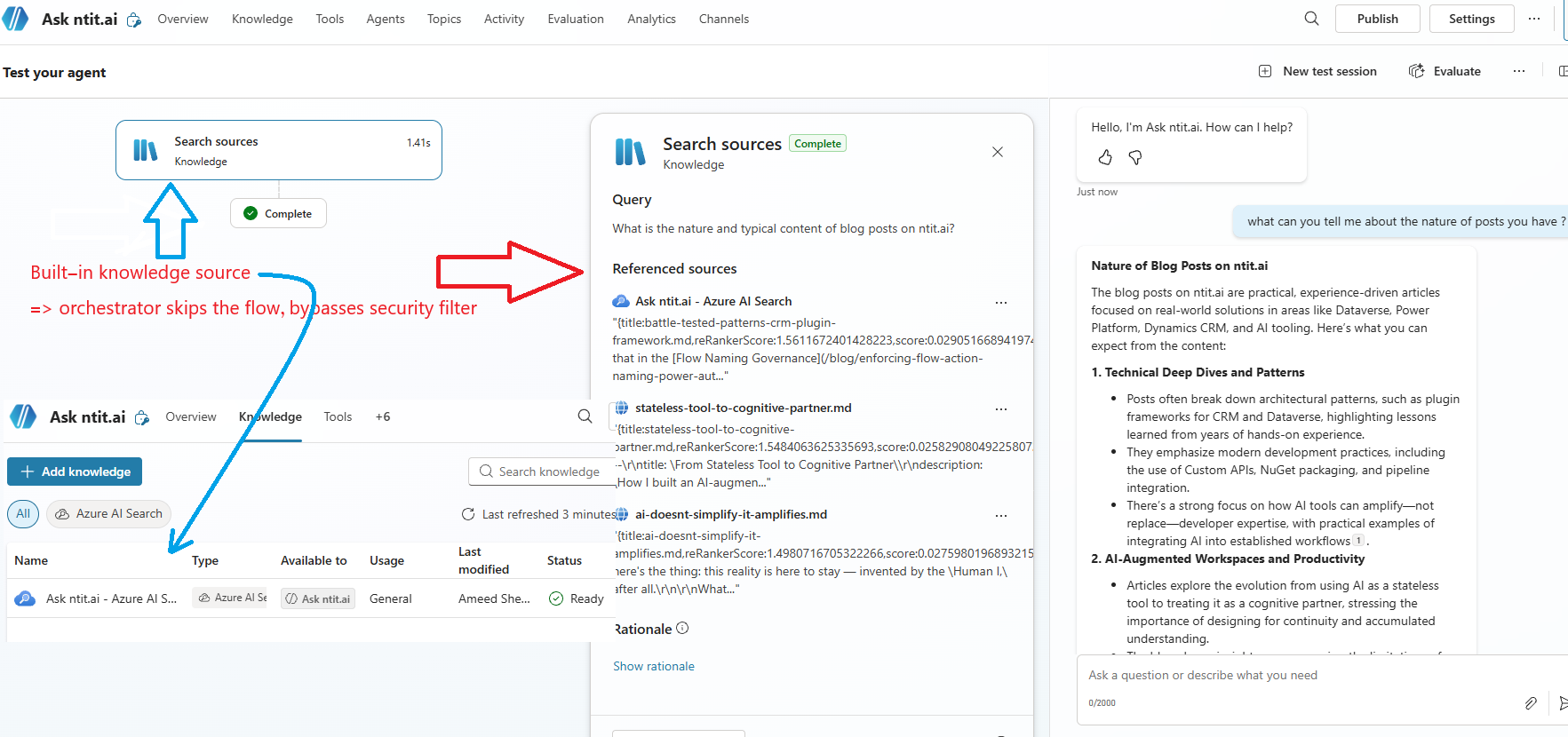
The fix: remove the built-in knowledge source and route all queries through the flow. Once the Azure AI Search knowledge source is deleted, the orchestrator’s only path is the Power Automate action — which applies the OData filter on every request.
5. search.in() Delimiter vs Special Characters in Group Names
This one bit me live during testing. The OData filter uses search.in() to match against multiple groups:
allowed_groups/any(g: search.in(g, '[ntit-blog] AI & Architecture,[ntit-blog] Platform & DevOps'))The default delimiter for search.in() is comma-space. But if your group names contain &, ,, or other special characters, the delimiter parsing breaks silently — the query returns zero results instead of an error.
The fix: use an explicit delimiter that doesn’t appear in your group names. Pipe (|) works well:
allowed_groups/any(g: search.in(g, '[ntit-blog] AI & Architecture|[ntit-blog] Platform & DevOps', '|'))The third parameter tells search.in() to split on | instead of the default. Same query, same groups — but now it actually works. This isn’t documented prominently; you’ll find it only in the OData expression reference.
6. Tangentially Related Chunks
Even with a correct security filter, the semantic search may return chunks that keyword-match but don’t actually answer the question. For example, asking “What are the three patterns for combining MCP and agents?” with only the Platform & DevOps group — the OData filter correctly excludes all AI & Architecture-only chunks, but the search still returns a chunk titled “The Three-Layer Architecture” from a governance post. It matches on “three” and “architecture” — close enough for the search engine, nowhere near the actual answer.
The @search.rerankerScore reflects this: tangential chunks typically score 1.6–1.8 out of 4.0, while direct answers score 3.0+. But Azure AI Search has no query-time parameter to filter by reranker score — I checked every API version up to 2025-11-01-preview. The @search.rerankerScore is returned in the response, not accepted as an input threshold.
What does work: the answers parameter with semantic search:
{
  "search": "three patterns for combining MCP and agents",
  "filter": "allowed_groups/any(g: search.in(g, '[ntit-blog] Platform & DevOps', '|'))",
  "select": "chunk, title, allowed_groups",
  "top": 5,
  "queryType": "semantic",
  "semanticConfiguration": "ntit-blog-index-semantic-configuration",
  "answers": "extractive|count-1"
}
Adding "answers": "extractive|count-1" asks the service to extract a direct answer from the top-ranked chunks. When no chunk confidently answers the question, @search.answers comes back as an empty array. This is a service-side relevance signal your middleware can act on:
@search.answersis empty → the service found chunks but none of them answer the question → respond with “I don’t have relevant information on that topic”@search.answershas results → the service is confident it found an answer → pass chunks to OpenAI
This gives you a two-layer defense: the OData filter is the hard security boundary (group membership), and the answers signal is the relevance guard (does the allowed content actually answer the question).
7. Worth Knowing: Foundry RBAC
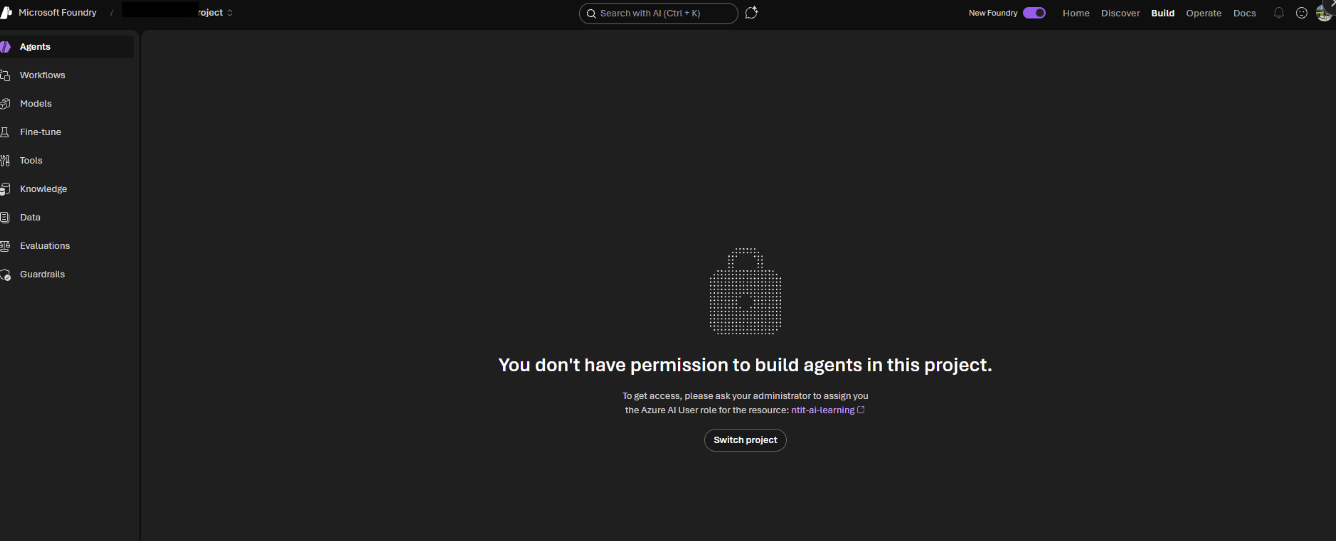
Being a Subscription Owner or Global Admin does not grant access to build agents in Microsoft Foundry. Foundry uses AI-specific data-plane roles — the minimum is Azure AI User. If you hit “You don’t have permission to build agents”, this is why. Microsoft documents this here.
For the Business & Enterprise Architects
Security trimming isn’t a feature of Azure AI Search — it’s a pattern you implement. The building blocks are already there:
- Azure AI Search: Filterable fields on every chunk
- Microsoft Graph: Group membership resolution
- OData filters: The actual security boundary
- Your middleware: The glue that connects identity to filters
The presentation layer doesn’t matter. Copilot Studio, a Python FastAPI backend, a Teams bot, a custom web app — the middleware resolves identity, builds the filter, and passes it through. Everything downstream is identity-agnostic.
But here’s what nobody talks about: the filter is the easy part.
The real challenge is the content security tagging strategy — and it deserves the same architectural attention as your data model. Consider: a single document may contain sections with different sensitivity levels. A paragraph that’s safe for one audience might reference a figure, a client name, or a commercial detail that isn’t. A chunk that crosses a section boundary might blend public context with restricted content.
These aren’t hypothetical edge cases. They’re the norm in enterprise knowledge bases — legal reviews with redacted clauses, project retrospectives that reference multiple workstreams, architecture documents that span both public roadmaps and internal cost models.
The implication: you may need to dice and splice content before indexing — splitting documents into finer-grained chunks so each piece can be tagged independently, rather than applying a blanket group to an entire file. The OData filter is binary. A chunk is either visible or it isn’t. There’s no “partially visible.” Getting those boundaries right — where one audience’s content ends and another’s begins — is an information architecture problem that no amount of clever middleware can solve after the fact.
For organizations evaluating Microsoft 365 Copilot vs custom RAG: my understanding is that Copilot handles SharePoint permissions natively via the Graph API. But for custom knowledge bases, external data sources, or non-SharePoint content — this is the pattern worth exploring.
What’s Next
This POC uses two security groups and 101 chunks. The pattern scales to hundreds of groups and millions of chunks — the OData filter is evaluated at query time, not at indexing time.
Next steps I’m exploring:
- Teams integration: Deploy the Copilot Studio agent to Teams so different users naturally authenticate with their own identity
- Python middleware: A thin FastAPI layer as an alternative to Power Automate — same pattern, more control
- Foundry agent with tools: Instead of Copilot Studio + Power Automate, push the security trimming into a Foundry agent tool — the agent calls a custom function that resolves groups and queries the index with the OData filter directly
- Metadata-driven indexing: Leverage document metadata (page categories, tags, audience attributes) to automatically map content to Entra ID security groups during indexing — instead of tagging chunks manually, let the source metadata drive the
allowed_groupsassignment - Dynamic group resolution: Instead of static Entra ID groups, resolve permissions from a database or external system
The code isn’t the hard part. The hard part is the information architecture: deciding who should see what, and maintaining those boundaries as content grows. That’s an Enterprise Architecture problem, not an engineering one.
Built with Azure AI Search (Free tier), Azure OpenAI (gpt-4.1-mini + text-embedding-3-small), Copilot Studio, and Power Automate. Total Azure cost for the POC: approximately zero.